GMENU
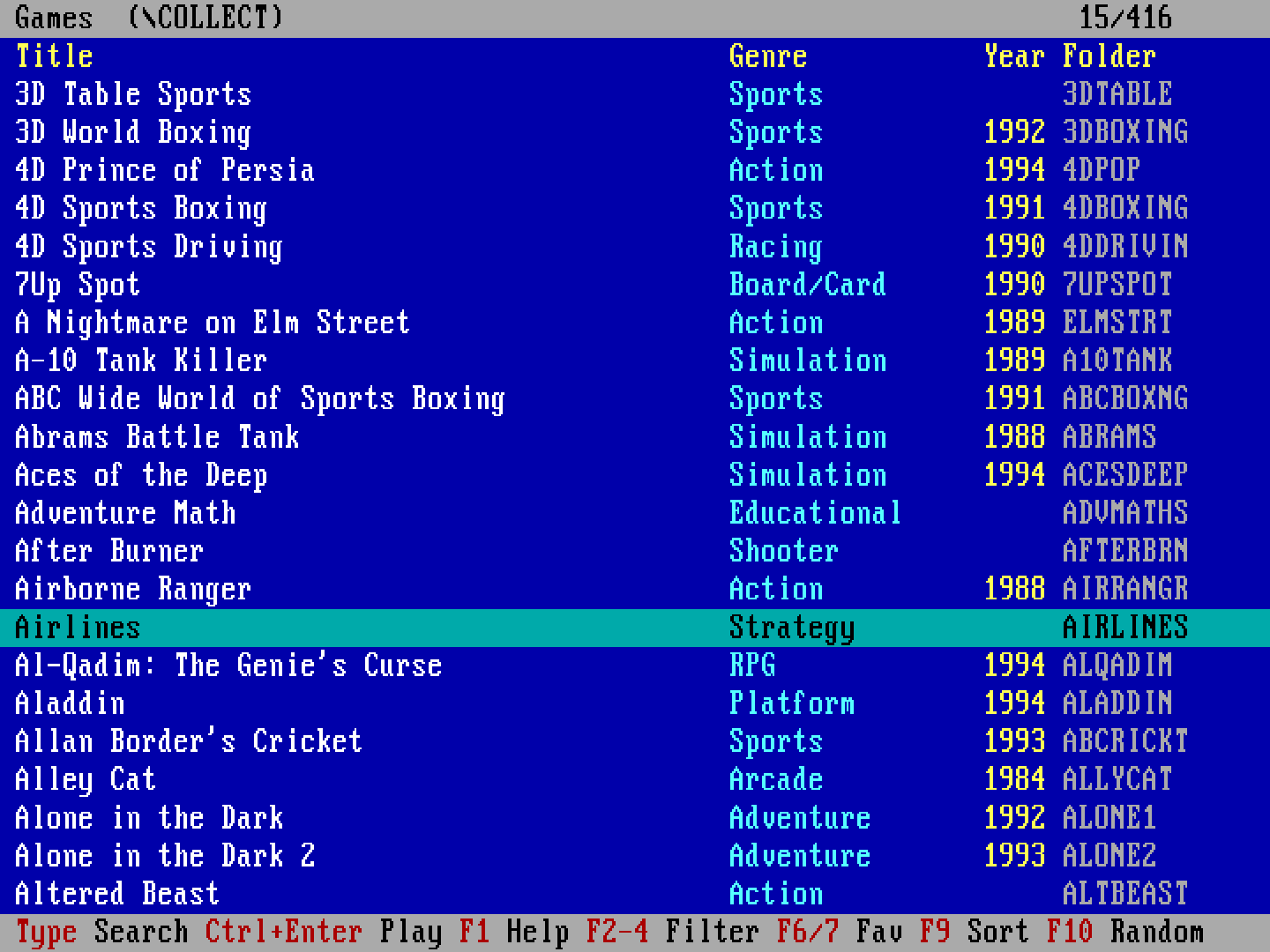
GMENU is a DOS program (C++, Open Watcom, 8086 code, about 45 KB). It lists the game folders of one directory (
\COLLECTby default) with their title, genre, year and players, and starts the chosen game. It is not in memory while the game runs, so the game gets all the free memory.Up to 1.1.1 GMENU was written in NASM assembly and its programs were
.COMfiles; 2.0.0 is the same menu rewritten in C++, with the toolchain of DOSINST, and its programs areGMENUPRG.EXEandGMEDIT.EXE. 2.1.0 builds it in layers on DOSLIB, the library it shares with DOSINST; the menu is the same. 2.3.0 starts from its cache without scanning the game folders, and only the free memory limits the number of games. The store and the title of the game list call it GMenu Launcher; the folder and the programs keep their names.
- Repository: git.teletypegames.org/dos/gmenu
- Download v2.3.0: GMENU-v2.3.0.zip · the executables alone: GMENUPRG.EXE, GMEDIT.EXE
- Releases: git.teletypegames.org/dos/gmenu/releases
What it does
- Game list from each folder's
METADATA.INI(or the first line ofNAME.TXT, or the folder name). - Search as you type, in the titles, the folder names and the descriptions.
- Filters by genre (F2), year or decade (F3) and number of players (F4); favorites only (F7); games without
METADATA.INIonly (Shift+F7). - Sorting by title, year, genre or most played (F9); a random game (F10).
- Favorites (F6) and the last 10 played games (F8); play count and last played date per game.
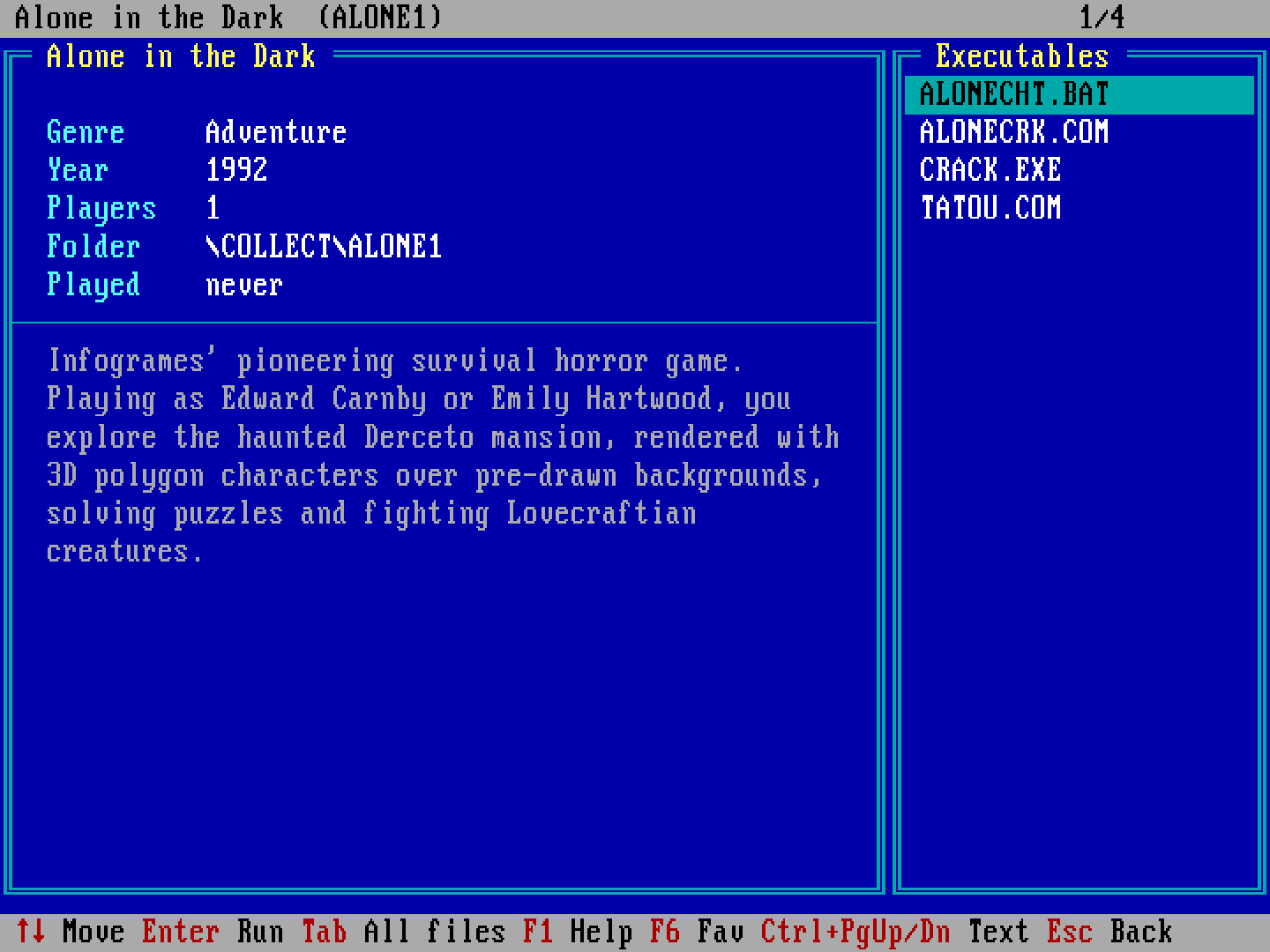
- Detail page (Enter): all the data, a scrollable multi-line description and the game's
.COM/.EXE/.BATfiles to start. - Play with Ctrl+Enter or a double click (the
RUNcommand), setup with Ctrl+S. - Editor (Ctrl+E,
GMEDIT.EXE): creates or edits a game'sMETADATA.INIin a form. - Keyboard and mouse, including the wheel (CuteMouse WheelAPI). F1 lists all the keys.
Installation
The quickest way on a networked DOS machine is DOSINST: DOSINST INSTALL GMENU installs the latest release to C:\APPS\GMENU, and running it again updates it. By hand:
- Download
GMENU-vX.Y.Z.zipfrom the releases and unzip it to the DOS drive, for example toC:\APPS\GMENU\(the default, where DOSINST installs it). The menu needsGMENU.BATandGMENUPRG.EXE, andGMEDIT.EXEfor editing. - Put every game in its own folder under one common directory, with a
METADATA.INI(or at least aNAME.TXT) in each:TXTC:\COLLECT\ DOOM\ METADATA.INI DOOM.EXE PRINCE\ NAME.TXT <- first line: "Prince of Persia" PRINCE.EXE - Set the game directory in
GMENU.BAT(the last argument of theGMENUPRG.EXEline, keep/B):BAT%GMENU%PRG.EXE /B \COLLECTAnother drive works too (
D:\GAMES)./Ashows all files on the detail page, not only the executables. - Start it with
GMENU.GMENU.BATfinds its programs from the name it was started with, so the folder can be anywhere; started with the.BATextension (from Total Commander or Windows 98, say) it cannot, and runs them fromC:\APPS\GMENU(theset GMENU=line: change it if the menu is elsewhere). In DOSBox it can start at boot:TXT[autoexec] mount c /Users/.../Dosbox c: path Z:\;C:\APPS\GMENU gmenu
To update an installed menu, copy GMENUPRG.EXE, GMEDIT.EXE and GMENU.BAT into its folder, and set the game directory in GMENU.BAT again. Coming from 1.x, the new GMENU.BAT is a must: the old one starts GMENUPRG.COM, so the old .COM files can be deleted. DOSINST does all of this, including the deleting.
METADATA.INI
Every line is optional, the keys are not case sensitive, [GAME] and the lines starting with ; are ignored:
[GAME]
NAME=Doom
GENRE=Shooter
YEAR=1993
PLAYERS=1-4
DESCRIPTION=The whole description in one line...
DESCRIPTION=A second DESCRIPTION line starts a new line.\nSo does \n inside the text.
RUN=DOOM.EXE -nomusic
ARGS=-skill 3
SETUP=SETUP.EXE
| Key | Meaning |
|---|---|
NAME |
The title. Without it: NAME.TXT, then the folder name. |
GENRE, YEAR |
Shown in the list, used by the filters and the sorting. |
PLAYERS |
A number (2), a range (1-4) or open-ended (2+). The filter matches the ranges that contain the count. |
DESCRIPTION |
\n is a line break, \\ a backslash; several lines are joined with line breaks. |
RUN |
What Ctrl+Enter starts: a file of the game's folder with optional arguments. |
ARGS |
Added to RUN, also when the RUN file is started from the detail page. |
SETUP |
The setup command, started with Ctrl+S. |
The files can be UTF-8 (with or without BOM) or code page 437. UTF-8 letters are converted to code page 437; the ones it does not have (ő, ű, Á) become the closest one (ö, ü, A).
Editing with GMEDIT: Ctrl+E opens a form with the fields. A new file starts from what the folder tells (NAME.TXT, the only executable as RUN, the first SETUP* / INSTALL* as SETUP). Saving rewrites only the changed values; comments, other keys and untouched values stay as they were. F2 saves, Esc cancels. It also runs on its own: GMEDIT C:\COLLECT\DOOM.
How it works
GMENU.BAT is a loop around the program, so the menu never stays in memory under a game:
GMENU.BATrunsGMENUPRG.EXE /Bwith the game directory.- When you choose a game, the program writes
GMENURUN.BAT(change drive and folder, start the game, change back) into its own folder and exits. GMENU.BATcallsGMENURUN.BAT, then starts the menu again — on the same game, with the same search, filters and sort order.
Ctrl+E works the same way, only GMENURUN.BAT starts GMEDIT.EXE. Without /B, the program only says that it must be started with GMENU.BAT.
On start the menu takes the games from GMENU.IDX and does not look at the game folders, so it starts quickly on a slow machine with many games too; only the selected game is checked, so an edit with Ctrl+E shows at once. A scan — the first start, a missing GMENU.IDX or one of another game directory, or Ctrl+F — lists the folders, rereads only the METADATA.INI / NAME.TXT files whose date, time or size changed, and writes GMENU.IDX again. New, removed or renamed game folders appear after Ctrl+F.
Runtime files, next to GMENUPRG.EXE (their formats did not change since 1.1.0, so an updated menu keeps its state; GMENU.IDX got a new version in 2.3.0, so the first start after that update scans the folders once):
| File | Content |
|---|---|
GMENU.SEL |
Last game, search, filters, sort order, recent games |
GMENU.FAV |
Favorites, one folder name per line |
GMENU.STA |
Play count and last played date per game |
GMENU.IDX |
Cache of the game folders and their METADATA.INI / NAME.TXT data; Ctrl+F rebuilds it, and it can be deleted any time |
Building and tests
The build needs Open Watcom v2 (the snapshot release has macOS and Linux binaries; set WATCOM to its folder if it is not ~/.local/opt/watcom):
cd SOURCE
./build.sh          # GMENUPRG.EXE and GMEDIT.EXE into the parent folder
./build.sh test     # the test versions into SOURCE/build/
The source is in layers, each using only the ones below it through their interfaces (the rules are on the DOSLIB page): model (games, filters, the session, METADATA.INI), repository (the files: game folders with the GMENU.IDX cache, favorites, statistics, session, GMENURUN.BAT), service (the game list, starting a game, the pickers, GMEDIT's editing), controller and view (the pages), app (puts them together), and main_gmenu.cpp / main_gmedit.cpp for DOS. SOURCE/lib is DOSLIB. The default game directory comes from collect_dir in gmenu.ini.
The unit tests run on the host without DOSBox, the whole menu and editor too, with scripted keys on an in-memory disk; they check the layers first:
SOURCE/test/unit/run.sh
The screen tests run the test versions in DOSBox: for each case of SOURCE/test/cases.txt the keystrokes go into TESTKEYS.TXT, and when they run out the program saves the screen, which is compared with SOURCE/test/expected/. They need Python 3, Open Watcom and DOSBox (Staging or 0.74):
python3 SOURCE/test/run.py              # all cases
python3 SOURCE/test/run.py --update     # accept the current results
Releases
Woodpecker builds and tests every push. A raised version in metadata.json, pushed to master, gets its vX.Y.Z tag from the pipeline, and that tag also publishes a Gitea release with RELEASE_NOTES.md as its text and three files: the GMENU-vX.Y.Z.zip to install, and GMENUPRG.EXE and GMEDIT.EXE to update an installed menu. The same tag publishes the release to the catalog, and from there the menu goes into the DOSINST store (ftp://ftp.teletypegames.org/APPS), with the tag as the version in its INFO.INI. Every step is a command of the dos-tools builder image (git.teletypegames.org/build/dos-builder), which has the toolchain preinstalled; the repo holds only the platform: dos marker and its metadata.json, whose dos block says what a release holds. The screen tests run four cases at a time (JOBS, each in its own folder). The Gitea release is made by the WarpEngine's shared release step from the files dos-pack lists. There is no store step: the DOSINST store is the engine's DOS shelf, which it rebuilds from the catalog on every publish, so the pipeline needs no deploy key.
# "version": "2.4.0" in metadata.json, then
git commit -am "Version 2.4.0"
git push origin master
Limitations
- The number of game folders is limited only by the free memory (about 100 bytes per game plus its data, at most 16000); at most 600 files per folder are listed. The recent list keeps 10 games, the statistics the last 1000 played games.
- Title 50 characters, genre 24, year and players 10, description 2000,
RUN/SETUP/ARGS60.METADATA.INIis read up to 4 KB, GMEDIT edits up to 8 KB. - The screen uses code page 437.